
What if a label that looks perfect on screen is difficult to read, unsuitable for the product or a different colour once printed? The mistakes to avoid when printing labels often start with small details in the brief or artwork that are easy to miss before production.
It’s understandable to focus on appearance, but clear artwork, suitable materials and a careful proof check all matter to the finished result. Fine text, a colour shift or a material that doesn’t suit the product’s environment can affect how a label looks and works.
This guide explains how to check your files, choose materials and finishes for the intended use, and review a proof before approval. If you’re preparing an order, discuss the file, material and production requirements with your printer before signing off. First Stop Signs Print provides label printing for UK businesses.
Key Takeaways
- Define where and how the label will be used before deciding on its size, material or finish.
- Check artwork dimensions, resolution, fonts, colours, bleed and trim, then confirm the printer’s file requirements before exporting.
- Match the label material and adhesive to the application surface, handling and expected environmental exposure.
- Review the proof as a whole, checking content, layout, dimensions and colour expectations against an approved source.
- Use a final checklist to catch mistakes to avoid when printing labels, and confirm key specifications in writing before approval.
Mistakes to Avoid When Printing Labels: Start with the Brief
A label-printing mistake is a preventable issue in the brief, artwork or approval process that affects how the finished label looks or works. It can begin before anyone opens a design file. If the intended use isn’t clear, the dimensions, material or finish may not suit the product.
Start by defining what the label needs to do. A label for a curved container may need a different size or placement from one for a flat surface. Consider where the product will be stored and whether the label could encounter moisture, friction, temperature changes or outdoor conditions. These details help your printer advise on suitable options. For a general introduction to label types and uses, see What is a label?
For another perspective on common pitfalls, watch this video:
Define the label’s job before designing it
Record the product, container shape, application surface and intended label position. Consider how the label will be applied and handled, not just how it should look in a design. A label on a bottle that may get wet has different demands from one on a dry box stored indoors. List the information that must remain readable at the finished size, so the design gives it enough space.
These details connect the brief to the artwork. If essential wording, such as a product name or instructions, is too small or crowded, the label may look polished on screen but be hard to use. Keep the real application in mind when discussing layout and proportions.
Confirm specifications before artwork begins
Before designing, agree the finished dimensions, quantity, format and intended application with the printer. Ask which file setup and colour specifications suit the planned production process. Requirements can vary, so don’t rely on a template or settings from another job.
- Confirm material, adhesive and finish options with the printer.
- Share the application surface and relevant storage or handling conditions.
- Check the required file format and setup before exporting artwork.
Agreeing specifications before artwork approval helps prevent avoidable errors by ensuring the design reflects the label’s intended use and production requirements. A clear conversation with the printer at the briefing stage gives you a basis for preparing artwork and assessing the proof.
Avoid Artwork and File Setup Errors Before Sending Labels to Print
A file that looks tidy on a large monitor can lose detail when reduced to label size. Check the design against the printer’s requirements rather than relying on settings from a previous job. File specifications can vary by printer and production method, so ask for the correct setup before exporting.
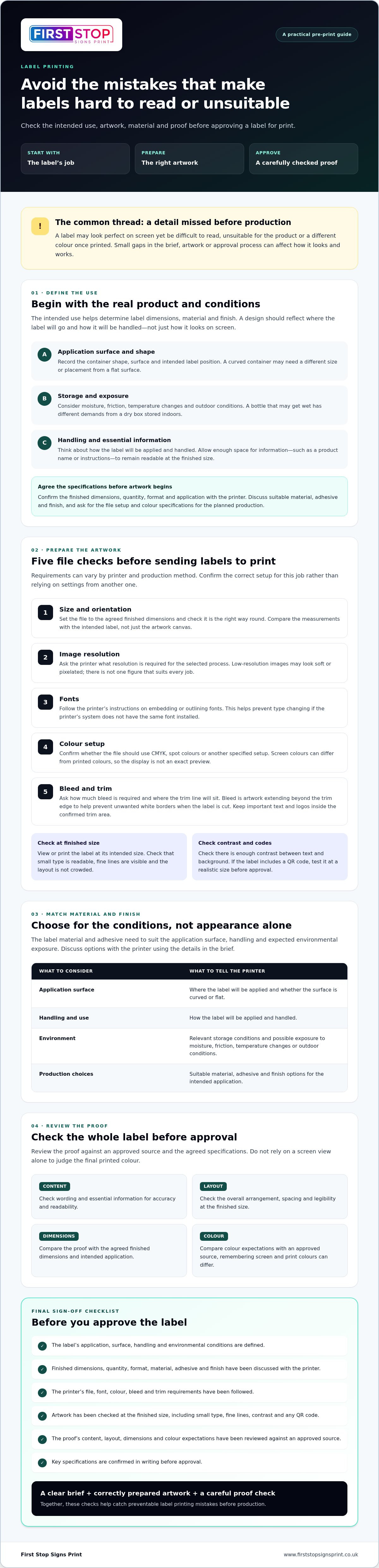
Use this numbered check before you submit your artwork:
- Size and orientation: Set the file to the agreed finished dimensions and confirm it’s the right way round. Check the measurements against the intended label, not just the artwork canvas.
- Resolution: Ask the printer what image resolution is required for the selected process. Low-resolution images may appear soft or pixelated, but there isn’t one figure that suits every job.
- Fonts: Follow the supplied instructions on embedding or outlining fonts. This helps prevent type from changing if the printer’s system doesn’t have the same font installed.
- Colours: Confirm whether the file should use CMYK, spot colours or another specified colour setup. Screen colours can differ from printed colours, so don’t assume the display is an exact preview.
- Bleed and trim: Ask how much bleed is required and where the trim line will sit. Bleed is the area of artwork that extends beyond the trim edge to help prevent unwanted white borders when the label is cut. Use the printer’s supplied specification, and keep important text and logos safely inside the confirmed trim area.
Check legibility at the finished size
Zooming in on a design can disguise problems. View or print it at its intended size and check that small type remains readable, fine lines are visible and the layout isn’t crowded. Check there’s enough contrast between text and its background. If the label includes a QR code, test it at a realistic size before approval.
For labels on food packaging, check that the information is accurate and consult the official UK food labelling laws guidance where relevant. A well-prepared file still needs correct content.
Ask before exporting
Don’t guess at file settings. Confirm dimensions, resolution, colour setup, font handling, bleed and trim requirements with your print provider first. Doing so can prevent artwork being prepared in a format that needs changes later. If you’re planning a label project, you can also explore label printing information from First Stop Signs Print.
Choose Label Materials and Finishes for the Real Conditions
A label can look right in a sample image and still be a poor fit for its job. Choosing by appearance alone may overlook the surface it must stick to, how often it will be handled and the conditions it may face. Paper and synthetic materials, different adhesives and surface finishes each have their own uses. Ask your printer which options suit your application instead of assuming a particular material will perform as needed.
Think through the label’s journey: where it will be applied, how the item will be stored and whether it may encounter moisture, rubbing, temperature changes or outdoor exposure. This practical check helps narrow the options before artwork and production decisions are finalised.
Match the label material and adhesive to the surface
Describe the application surface clearly. Is it smooth or textured, flat or curved, clean or likely to be handled frequently? These details can affect how a label sits and adheres. A label intended for a curved container, for example, may need different consideration from one applied to a flat carton. Tell the printer about any expected exposure to moisture or friction.
Ask the printer to confirm whether the specific material and adhesive combination suits the application. Don’t assume that an adhesive suitable for one surface or use will work equally well in another situation. The right recommendation depends on the product and its conditions.
Choose finishes for function as well as appearance
A finish influences more than a label’s appearance. Surface texture and lighting can change how colours look, while glare may make some text harder to read. Consider whether scuffs would be noticeable and whether the finish supports the brand appearance you want. If practical, review the design under lighting similar to where the product will be displayed.
For labels or stickers where a vinyl application is being considered, explore this guide to professional vinyl sticker printing. It can help you think through the application, but confirm the exact material and finish options for your own print job with the printer.
If you can’t judge the colour, texture or suitability from a screen, ask whether a sample or proof is available before approving production. Clarify this in advance, as availability can depend on the printer and job. Matching the specification to real use is one of the key mistakes to avoid when printing labels.
Catch Proofing, Colour and Information Errors Before Approval
A proof is your opportunity to check the label as a whole, not just confirm that the design looks attractive. Review the content, layout, dimensions and colour expectations together. A digital proof can show placement and wording clearly, but may not reproduce the final colour, material or finish exactly. Ask the printer what the proof does and doesn’t represent before relying on it for those decisions.
Approval confirms the details you’ve reviewed, so check every requested change against the latest proof before signing off. If artwork is updated after a correction, review the revised version rather than assuming only the requested detail has changed.
Review every proof at the intended label size
Check the proof at its finished dimensions, either on screen at an accurate scale or as a printout if available. Look closely at spelling, punctuation, product details, contact information and any required symbols. Then inspect the crop, alignment, spacing and contrast. Text that appears readable when enlarged may be too small on the actual label.
Compare important content with an approved source document, especially names, quantities and product details. Check that corrections haven’t introduced another error elsewhere in the layout. If colour or finish is central to your decision, ask whether the proof represents it accurately enough or whether another review method is available.
Verify barcodes, QR codes and variable information
Codes and changing details need specific checks. Scan each QR code with a suitable device and confirm it opens the intended destination. For a barcode, verify the data against the relevant approved source or specification, and ask the responsible provider about any print requirements. Don’t assume a code is correct just because it looks crisp on the proof.
For labels with batch numbers, dates or other variable fields, compare the production data with the approved source before sign-off. Check that the correct values appear in the right positions, and confirm how the supplied data will be used if anything is unclear. These details can be easy to overlook when reviewing a design focused mainly on branding.
Proofing is one of the practical mistakes to avoid when printing labels: approving too quickly can allow a content or layout issue to reach production. For a label print project, discuss your label printing requirements and confirm what the proof covers before approval.
Use a Final Checklist to Prevent Label Printing Mistakes
A final review connects the brief, artwork and production details before you approve the job. Don’t rely on memory or assume a detail discussed earlier is reflected in the latest version. Keep the agreed specifications together in writing, then check them against the artwork and proof.
Run through the pre-production checklist
Before submitting files or approving production, work through these checks in order:
- Confirm the use: Check that the product, application surface and expected conditions in the brief are still accurate.
- Verify the specification: Get written confirmation of the finished dimensions, material, adhesive, finish, quantity and label format.
- Check the file: Compare file format, colour setup, resolution, bleed and trim with the printer’s instructions.
- Review the proof: Check spelling, product information, layout, colour expectations and legibility at the intended size.
- Identify the approved version: Make sure the final artwork and any production data are clearly labelled, and that both parties are referring to the same version.
If any specification is missing or uncertain, pause and ask for clarification. Request a revised proof if a change has been made or the current version doesn’t clearly show what you need to approve. Resolve questions before sign-off rather than assuming the production details match your expectations.
Know what to ask your label printer
Ask which file format and colour setup are required for the job, and whether artwork checks or proofs are available. Confirm that the material, adhesive and finish options suit the intended surface and conditions. These details vary by printer and production process, so seek confirmation instead of relying on general advice or specifications from another order.
This final check brings together the key mistakes to avoid when printing labels: unclear requirements, unsuitable choices and approval of details that haven’t been fully reviewed. A conversation with a commercial printer can help you confirm the brief and production requirements before work proceeds. To discuss a label-printing project with First Stop Signs Print, get in touch about your label printing project.
Prepare Your Labels for a Confident Print Run
The most useful way to prevent mistakes to avoid when printing labels is to treat the brief, artwork and proof as one connected process. Start with the product’s real use, confirm dimensions and material with the printer, then prepare files to the supplied specifications. Before approval, check the wording, layout, colour expectations and any variable details against an approved source.
If something on the proof is unclear, pause and ask for clarification or a revised version. Confirming details in writing gives you a clear reference before production and helps ensure the finished labels meet the agreed requirements.
First Stop Signs Print provides commercial printing services in the UK, with label printing as its primary service. To discuss your project and confirm the file, material and production requirements, discuss your label-printing requirements with First Stop Signs Print.
Frequently Asked Questions
What is the most common mistake when printing labels?
A common mistake is starting artwork before confirming how the label will be used and what the printer requires. This can lead to unsuitable dimensions, material choices or file setup, followed by revisions or avoidable reprints. To prevent mistakes to avoid when printing labels, first confirm the product, application surface and conditions, then agree the specifications with your printer before preparing files.
What file format should I use for printing labels?
Use the file format requested by your printer, as requirements can vary with the production process and job. A print-ready PDF may be suitable for some orders, but don’t assume it’s right for every label. Ask about colour setup, resolution, fonts and whether artwork should include bleed. Following the supplied instructions helps ensure the file is ready for the printer’s workflow.
Do labels need bleed when prepared for print?
Labels may need bleed if the artwork extends to the cut edge, but the amount and setup should come from your printer. Bleed is extra artwork beyond the trim line, allowing for small variations during cutting and helping avoid an unwanted white edge. Keep essential text and logos inside the safe area, and don’t apply settings from another job without checking they suit this one.
Why do printed label colours look different from colours on screen?
Screens create colour with light, while printed colours are produced with inks, so the two methods may not show an exact match. Screen settings, the file’s colour space, printing process and label material can also influence the result. Ask your printer which colour setup to use and what the proof represents. If a precise shade matters, discuss how best to assess it before approving production.
How do I choose the right material for product labels?
Choose material according to the product, application surface and conditions the label will face. Consider whether the surface is smooth, textured or curved, and whether the label may encounter moisture, friction, temperature changes or outdoor exposure. Paper and synthetic materials have different uses, as do adhesives and finishes. Describe the application to your printer and ask them to confirm suitable options rather than choosing on appearance alone.
Can I print small text and QR codes on labels?
Small text and QR codes can be included, but their usability depends on the final label size, design and print requirements. Check text at its intended printed size, paying particular attention to contrast and spacing. Test QR codes with a suitable device and confirm they open the correct destination. Ask your printer about any code-specific requirements, and check the proof before approving production.
What should I check on a label proof before approving it?
Check the proof for correct spelling, punctuation, product details, quantities, contact information and symbols. Review dimensions, crop, alignment, spacing, contrast and legibility at the intended label size. Compare variable details with an approved source, and test any QR codes. Ask whether the proof accurately represents colour, material and finish. If anything is unclear or has changed, request clarification or a revised proof before sign-off.


